Stripe payouts can look right and still throw off your books. The problem usually isn't the sale itself, it's the gap between gross revenue, Stripe fees, and the net deposit that lands in your bank.
For SaaS teams, that gap matters fast. Small changes in card mix, currency, and plan size can move margins more than expected. A clean Stripe fees QuickBooks Online setup keeps the bank rec tidy and gives you a real view of profit.
The best way to handle it is simple, but it has to be consistent. Once the flow is set, month-end gets easier, not harder.
See the full fee picture before you reconcile
Stripe does not charge one flat cost. In May 2026, U.S. online cards are still 2.9% + 30¢, ACH Direct Debit is 0.8% capped at $5, and international cards add more. Currency conversion and disputes add even more pressure. Stripe's processing fees guide lays out the main layers clearly.
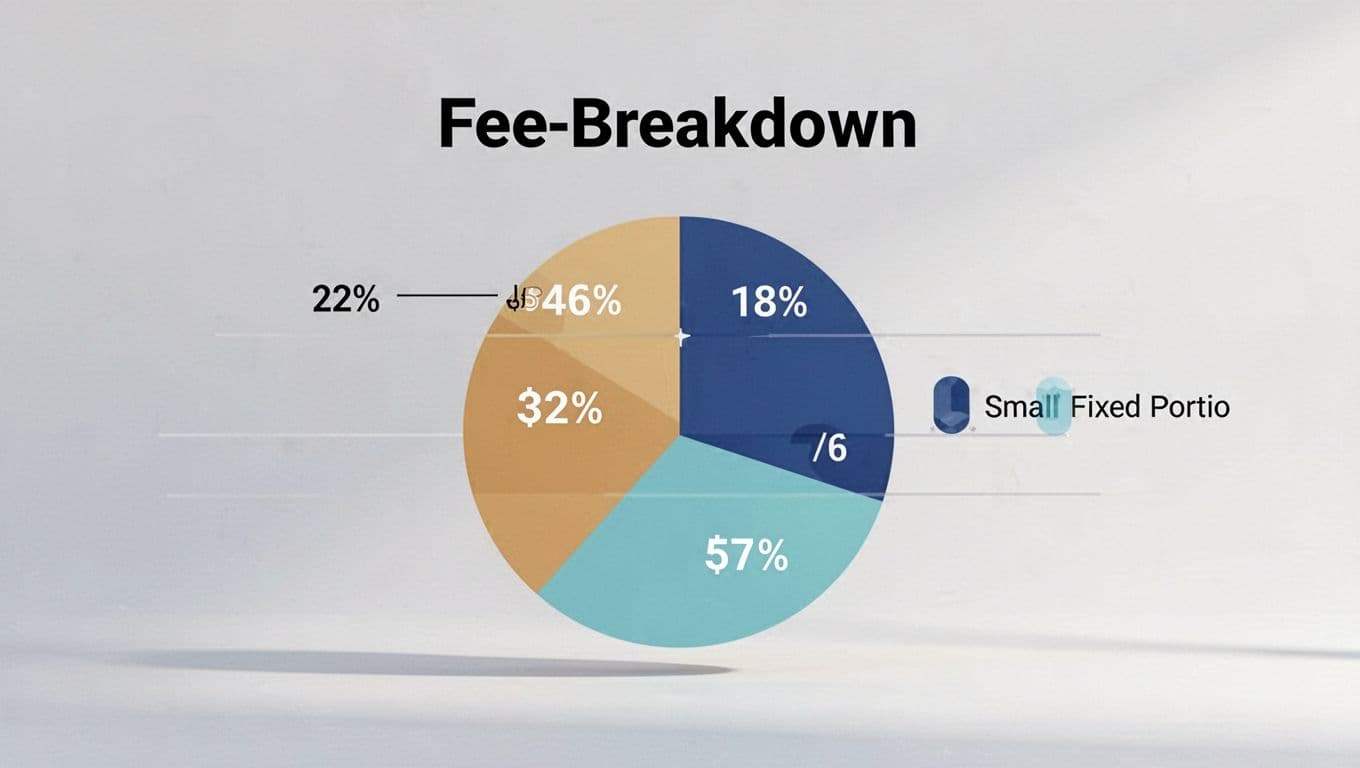
That mix is why the headline rate only tells part of the story. For SaaS, the real question is your effective fee rate across all payments. A Stripe fee calculator helps with a quick estimate, but it cannot show which plans, countries, or payment methods cost more.
If you want transaction-level detail instead of a blended average, FeeTrace's Stripe integration and fee analysis pulls the data you need without manual exports. That makes it much easier to spot where the leakage starts before you touch QuickBooks.
Set up QuickBooks Online so Stripe deposits match
The cleanest setup uses three pieces, gross sales, Stripe fees, and the bank deposit. QuickBooks Online handles this best when you keep the fee in a separate expense account and route payouts through a clearing account.
QuickBooks' own guide on connecting Stripe transactions in QuickBooks Online shows how Stripe fees can land in a dedicated expense account. That keeps the fee visible instead of burying it inside the deposit.
A simple structure looks like this:
| QuickBooks piece | What it records | Why it helps |
|---|---|---|
| Sales receipt or invoice payment | Gross customer payment | Keeps revenue accurate |
| Stripe Fees expense account | Processing fee amount | Shows the real payment cost |
| Stripe Clearing account | Temporary holding account | Makes payout matching easier |
The takeaway is straightforward. If you book the net payout as revenue, your books understate sales and hide the fee. If you use a clearing account, you can match one clean Stripe payout to one clean bank deposit.
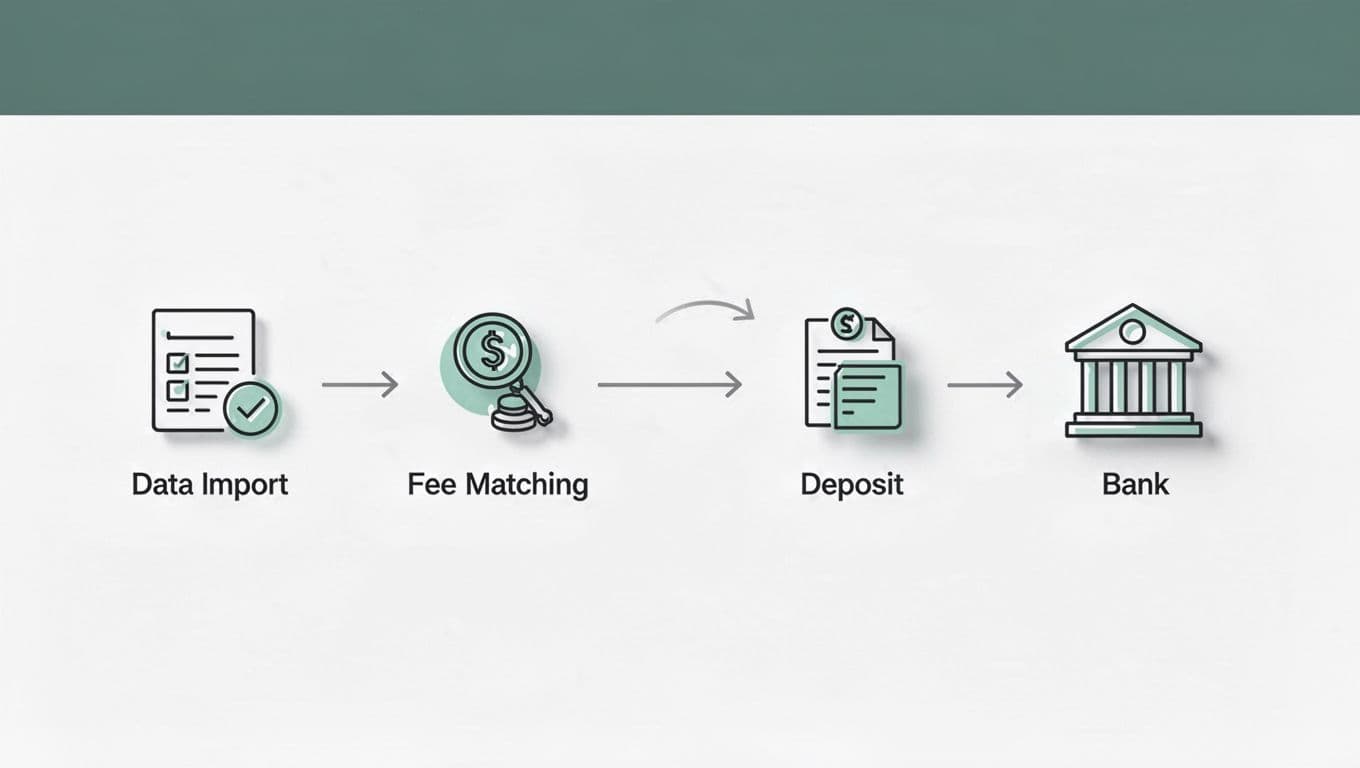
That setup is also the best match for teams that want Stripe integration and fee analysis tied to real transaction history. You get one place to track the sale, one place to track the fee, and one place to reconcile the payout.
Record the Stripe fee correctly every time
Once the accounts are ready, keep the same order for every payout. Consistency matters more than clever shortcuts.
- Record the invoice or sales receipt for the gross amount your customer paid.
- Post the Stripe fee to your Stripe Fees or Merchant Fees expense account.
- Match the net payout in QuickBooks to the bank deposit that actually hit your account.
- Reconcile the Stripe Clearing account against Stripe's payout report at month-end.
That flow works because it mirrors what Stripe already did. The customer paid gross. Stripe took its cut. Your bank received the net amount.
When you process refunds or chargebacks, record them separately. Don't fold them into normal processing fees. Otherwise, your fee line gets muddy and your revenue starts to drift.
A clean payout match is the goal. The fee line should explain the difference, not hide it.
If you see a mismatch, check for duplicate deposits, missing refunds, or a payment that settled in a different period. Those are the usual culprits. A typo in the fee amount is less common than a timing issue.
Find the SaaS segments that cost more
For Stripe processing fees SaaS teams usually pay, the worst cost is rarely the average. One plan tier may attract expensive card payments, while another pulls in cheaper ACH. Geography, currency conversion, and disputes can also change the number fast.
That is why SaaS payment processing costs need to be reviewed by segment, not just by month. A single blended rate can hide a lot of waste. If you only look at the bank total, you miss the customers and products that are pushing the fee rate up.

A Stripe fee breakdown by payment method, size, region, and product line makes the problem easier to see. FeeTrace's features for Stripe fee optimization are built around that kind of split, so you can spot the worst segment first instead of guessing.
If you're comparing Stripe vs PayPal fees, look past the headline rate. Low-ticket subscriptions feel fixed fees more than percentage fees, so the cheaper-looking option can still cost more in practice. A Stripe fee calculator helps with a quick check, but it won't tell you which part of your revenue is expensive to collect.
A blended fee rate hides the bad transactions. The waste usually sits in the smallest, fattest, or farthest-off customers.
If you want a faster read on where the money goes, Analyze My Fees and look at the segments that drive your effective rate up first.
Reduce Stripe fees without making the books messy
Once you know where the cost sits, you can decide what to change. That is the cleanest path for how to reduce Stripe fees without turning your accounting process into a mess.
Annual billing can help because it cuts the number of charges. ACH can lower costs for larger invoices. Local payment methods can help with overseas customers. Smaller card retry volume also matters, because failed payments and repeated attempts add hidden cost.
You do not need to change everything at once. Start with the largest revenue segment and the worst fee segment. If those two overlap, the fix usually pays back fast.
Keep an eye on dispute fees too. In May 2026, Stripe still charges $15 per dispute in many cases, so a small number of chargebacks can erase a lot of clean margin. That is one more reason to track fees by segment instead of by total.
If your volume is high enough, custom pricing may be worth a conversation with Stripe. Even then, the accounting process stays the same. Better rates help, but the books still need a gross sale, a fee, and a net payout that match.
Conclusion
Reconciling Stripe fees in QuickBooks Online comes down to three habits. Record the gross sale, book the fee separately, and match the payout to the bank deposit through a clear process.
Once that flow is stable, the books stop fighting you. More important, a real Stripe fee breakdown shows where margin slips, so you can fix the expensive segments instead of guessing.
When the fee trail is clean, month-end feels less like a hunt and more like a simple check.